Outliner can expose your outlines to local AI agents, such as Claude Desktop, Claude Code, or any other app that supports the Model Context Protocol (MCP). Once connected, you can ask the agent in plain language to find, read, and summarize your outlines. If you allow it, the agent can also edit them. This feature is only available on the Mac.
Your outlines never leave your Mac through this feature, because the server only accepts connections from the same computer. However, the AI app you use may still send what it reads to its own service.
Enabling the Server
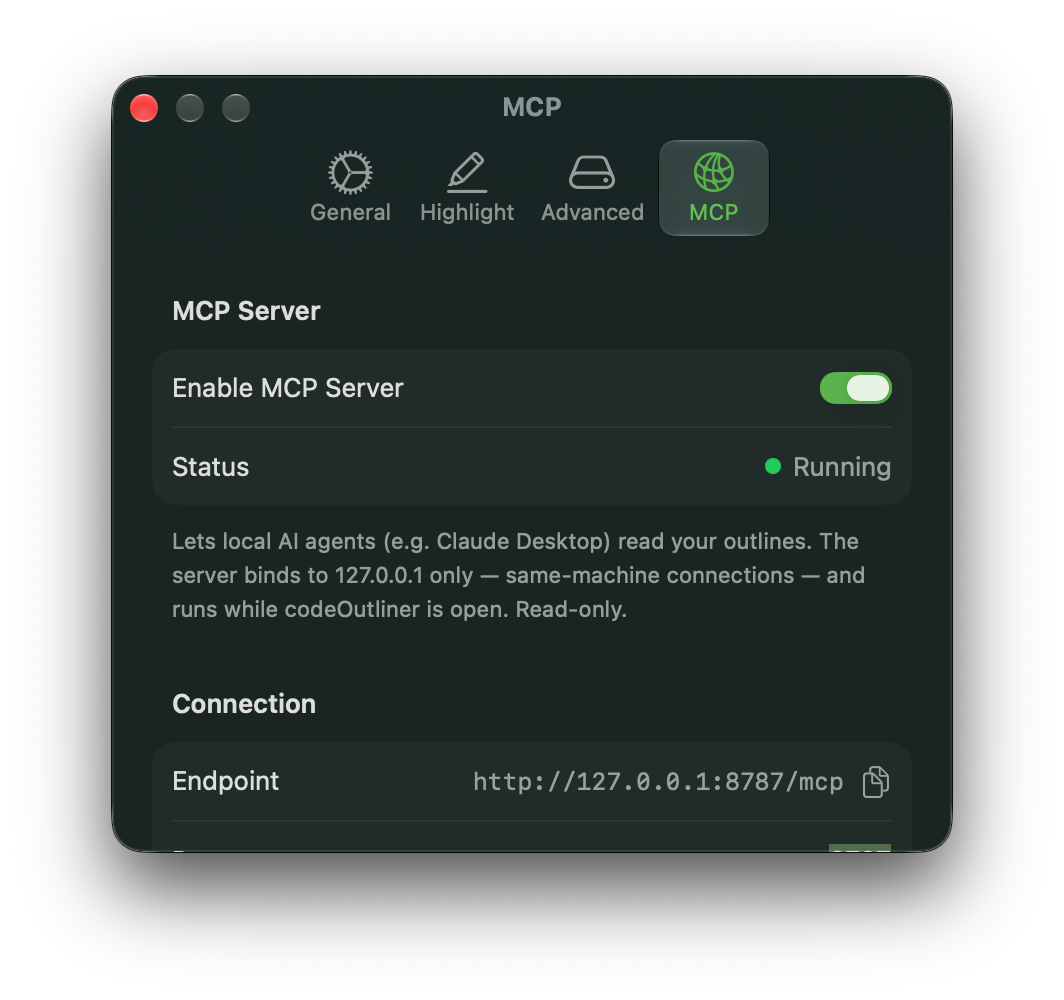
1. Open Settings → MCP Server and turn on Enable MCP Server. The status indicator shows Running once the server is active.
2. Copy the Endpoint URL with the copy button next to it. The default is:
http://127.0.0.1:8787/mcp3. If another app on your Mac is already using port 8787, type a different number in Port and press Return.
Connecting a Client
Copy the Endpoint URL shown in Settings and add it to your MCP client's configuration.
• Claude Desktop
• Go to Settings > Developer > Local MCP servers > Edit config.
• Open claude_desktop_config.json and add an "outliner" section under "mcpServers":
{
      "mcpServers": {
        "outliner": {
          "command": "npx",
          "args": [
            "-y",
            "mcp-remote",
            "http://127.0.0.1:8787/mcp"
          ]
        }
      },
....- Then, restart Claude Desktop
- For Claude CLI (or other Agents that support MCP)
Install Claude CLI
claude mcp add --transport http Outliner http://127.0.0.1:8787/mcp- Run claude
Access Token (Optional)
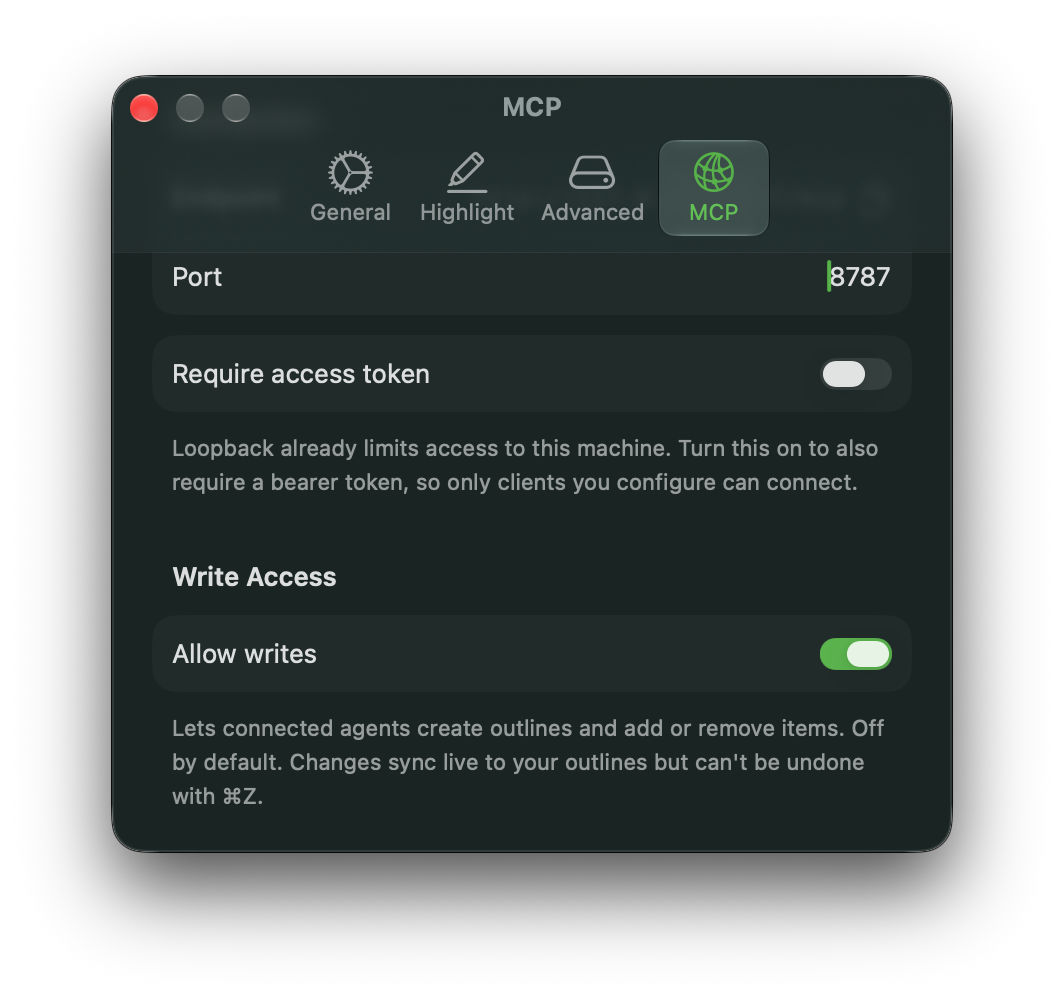
For extra protection on top of the same-Mac restriction, turn on Require access token. Outliner generates a token and shows it with a copy button. Clients must send this token as an HTTP header:
Authorization: Bearer <your token>For example, with Claude CLI:
claude mcp add --transport http Outliner http://127.0.0.1:8787/mcp \
  --header "Authorization: Bearer <your token>"
Allowing Writes
By default the server is read-only: connected agents can read and search your outlines but can't change them. Turning on Allow writes lets agents create outlines; add, edit, move, check, or remove items; manage tags; and attach images.
Changes made this way sync like any other edit. However, they can't be undone with Cmd+Z, except for adding or removing images. Only allow writes for agents you trust, and consider duplicating or exporting an important outline first. Turning this setting off takes effect immediately.
What You Can Ask
You don't need to know the tool names. Just describe what you want
Finding and reading
• "Summarize my outline library."
• "Find every outline that mentions quarterly review."
• "Which outlines are tagged work?"
• "Read my Trip to Japan outline and list the unchecked items."
• "What item am I working on right now?"
Writing (requires Allow writes)
• "Create an outline called Launch Checklist with sections for Design, Build, and QA, each with three tasks."
• "Add Book hotel under Travel in my Trip to Japan outline."
• "Check off everything under Groceries."
• "Move Testing so it comes before Release."
• "Rename the item Misc to Notes & Ideas."
• "Tag this outline archive and remove the active tag."
Images (v1.3+)
• "Show me the images on the Floor plan item."
• "I copied a screenshot. Attach it to the item I'm on."
• "Remove all images from this item."
MCP API List
Your AI app usually lists these tools under the server's name, and it may ask you to approve each one.
Read tools (always available)
| Tool | What it does |
|---|---|
get_summary | Gives an overview of your library: the number of outlines, items, tags, and pinned outlines, plus the 5 most recently edited outlines. |
search_outlines | Searches outline titles, item text, notes, and tags by keyword and/or tag. |
get_outline_tree | Reads a whole outline in one call, including every item's notes and check state. Very large outlines may be shortened. |
get_outline_items | Reads one level of an outline at a time, for browsing very large outlines. |
list_tags | Lists all tags and how many outlines use each one. |
get_focused_item | Returns the item you're currently editing in the active tab, so you can say "this item." |
get_root_item | Returns the item you've drilled into (focus mode) in the active tab, with an optional breadcrumb path. |
get_item_images | Shows the images attached to an item. |
Write tools (require Allow writes)
| Tool | What it does |
|---|---|
create_outline | Creates a new outline with a title, optional tags, and optional items nested to any depth. |
add_outline_items | Adds items under an item, at the top level, or before/after an existing item. |
remove_outline_items | Deletes items along with everything nested under them. |
update_outline_item_text | Changes an item's text. |
update_outline_item_note | Replaces or clears an item's note. |
move_outline_item | Moves an item before, after, or inside another item in the same outline. |
set_outline_item_checked | Checks or unchecks one item and everything under it. |
set_outline_items_checked | Checks or unchecks every item in an outline at once. |
add_outline_tags | Adds tags to an outline. |
remove_outline_tags | Removes tags from an outline. |
add_item_image_from_clipboard(v1.3+) | Attaches the image on your clipboard to an item. |
create_image_upload_url (v1.3+) | Creates a one-time link that a terminal-based agent uses to upload an image file. |
add_item_image (v1.3+) | Attaches an image sent directly as base64 data (for scripts and developers). |
remove_item_images (v1.3+) | Removes one, several, or all images from an item. |